


Author
Ben Gremillion
Articles
70 articles
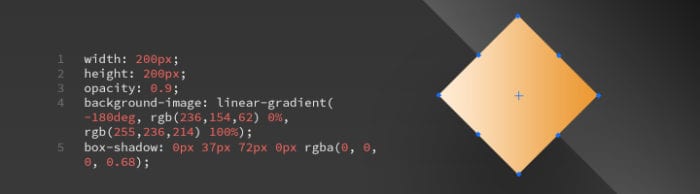
Custom Styles: Use CSS to style Elements in UXPin
Customize your elements with CSS code snippets. Simply enter CSS into UXPin’s editor and the element will be immediately styled.

Time For Collaboration: Working With (Very) Remote Teams
Based in California, Vice President of Product Sunita Reddy has had ample experience working with our Polish developers. We asked her how she tackles communication across with a team in Europe.

Styleguide: All Your Prototype Assets in One Place
Our new style guide feature lets your team download a host of assets from your UXPin prototypes to make your rapid design workflow convenient.

Keep the Design Conversation Going With Trello and UXPin
Trello’s great for managing workflows. UXPin is great for team feedback. The two work in tandem with these effective tips.
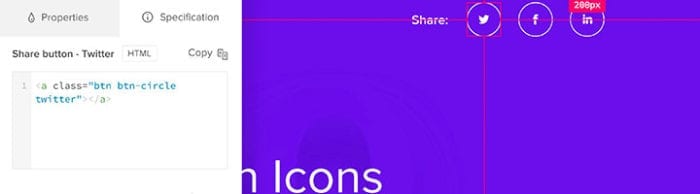
Say Hello to Spec Mode and Our New, Improved Sketch Integration
We’re pleased to bring you Spec Mode: a new way to get properties from elements in UXPin. Developers can now see exactly what elements they’re looking for and get their colors, typography dimensions, use cases, sample code, and more.

Stakeholders Can Now Request Changes Before Their Final Approval
Design teams can hold stakeholders accountable for final approvals with a new feature in UXPin. But sometimes they want to leave their thoughts before giving a stamp of approval — or disapproval. As of today, Enterprise UXPin users can comment on a design and ask for changes or make suggestions before giving their final OK.

Google Fonts Come to UXPin
Through our new Typography panel — plus a new modal window — you can manage dozens of type families. All of the available Google Fonts are a few clicks away.
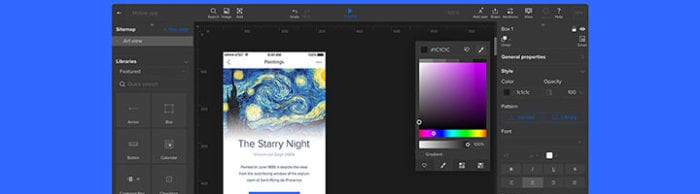
New in UXPin: Our Redesigned Dashboard
Today, we’re thrilled to announce the new and improved UXPin Dashboard: your design workflow that just flows.
User Guide Index
UXPin topics arranged in alphabetical order.
User Guides: Smart Elements | UXPin
This User Guide dives into how effectively use smart elements in UXPin.
Multistate Elements
Creating a MSE makes copies of the selected elements. You can move, resize, recolor, or otherwise change the copies per state.
Importing Assets
UXPin lets you import Sketch and Photoshop files with free plugins for each app. Doing so lets you make prototypes that demonstrate the product should feel.
Basic Interactions
Basic interactions let you show, hide, move, and manipulate other elements on a page. Each action affects only one other element in one step.
Pages, Views and Navigation
The sitemap is a tree of your pages or views. More than making distinct screens for sites and apps, you can use the sitemap to organize your work.
Previewing and Collaborating
Preview mode lets you — or anyone — test your prototype and its interactions, including links between pages or views, documentation, and comments.